
First steps
Koibox allows the use of a REST API that it makes available to its customers so that they can integrate automated workflows. This also allows integration with tools such as Make or Zapier.
Understanding the API keys panel
Section titled “Understanding the API keys panel”To use the API, you must first create a key.
An administrator can create it from the Settings > API Keys section.
This section contains a list of the center’s API keys, along with their status.
You can also create, activate, deactivate, and delete keys.
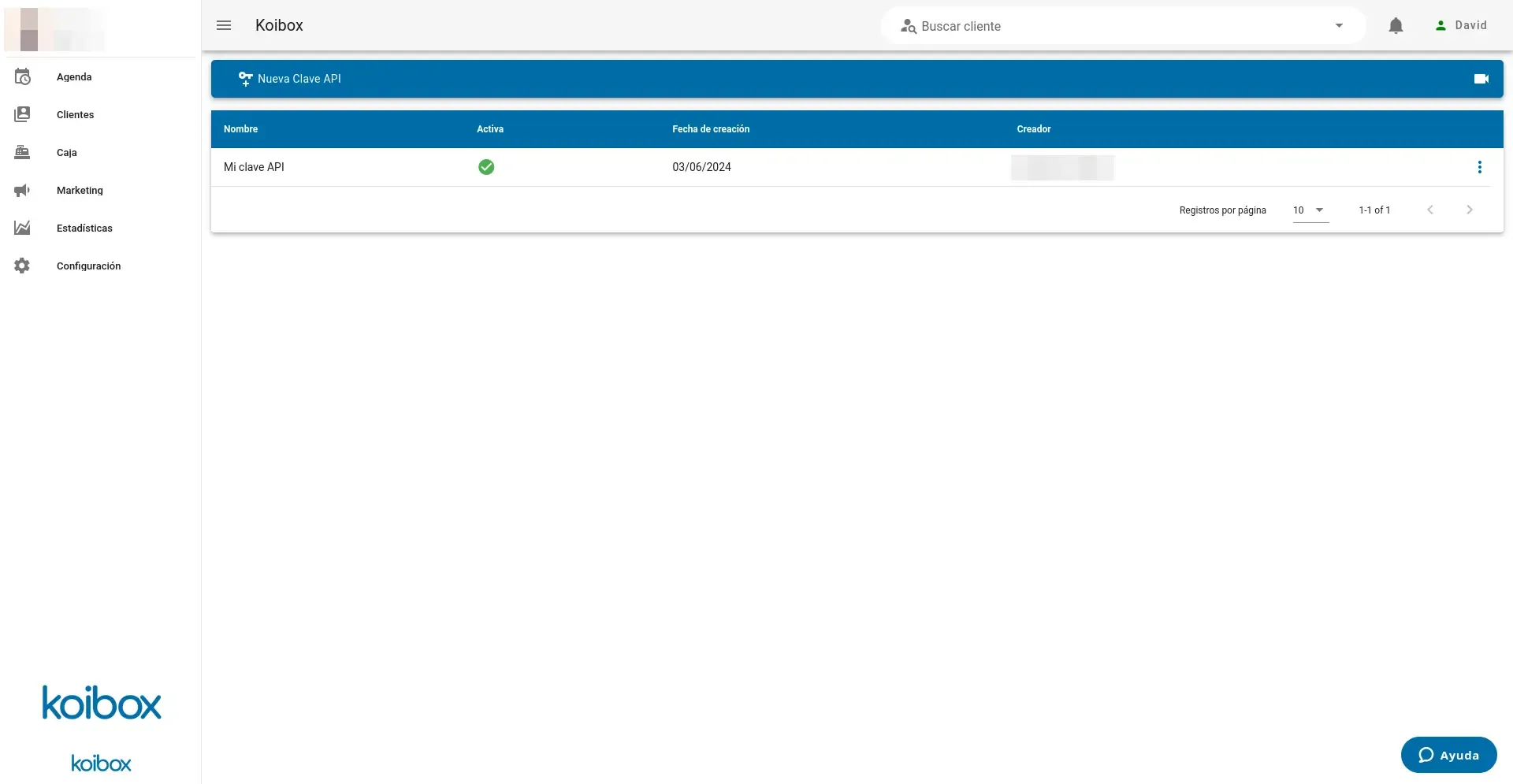
It is important to note that API keys are per center; one key cannot access the resources of another center.
-
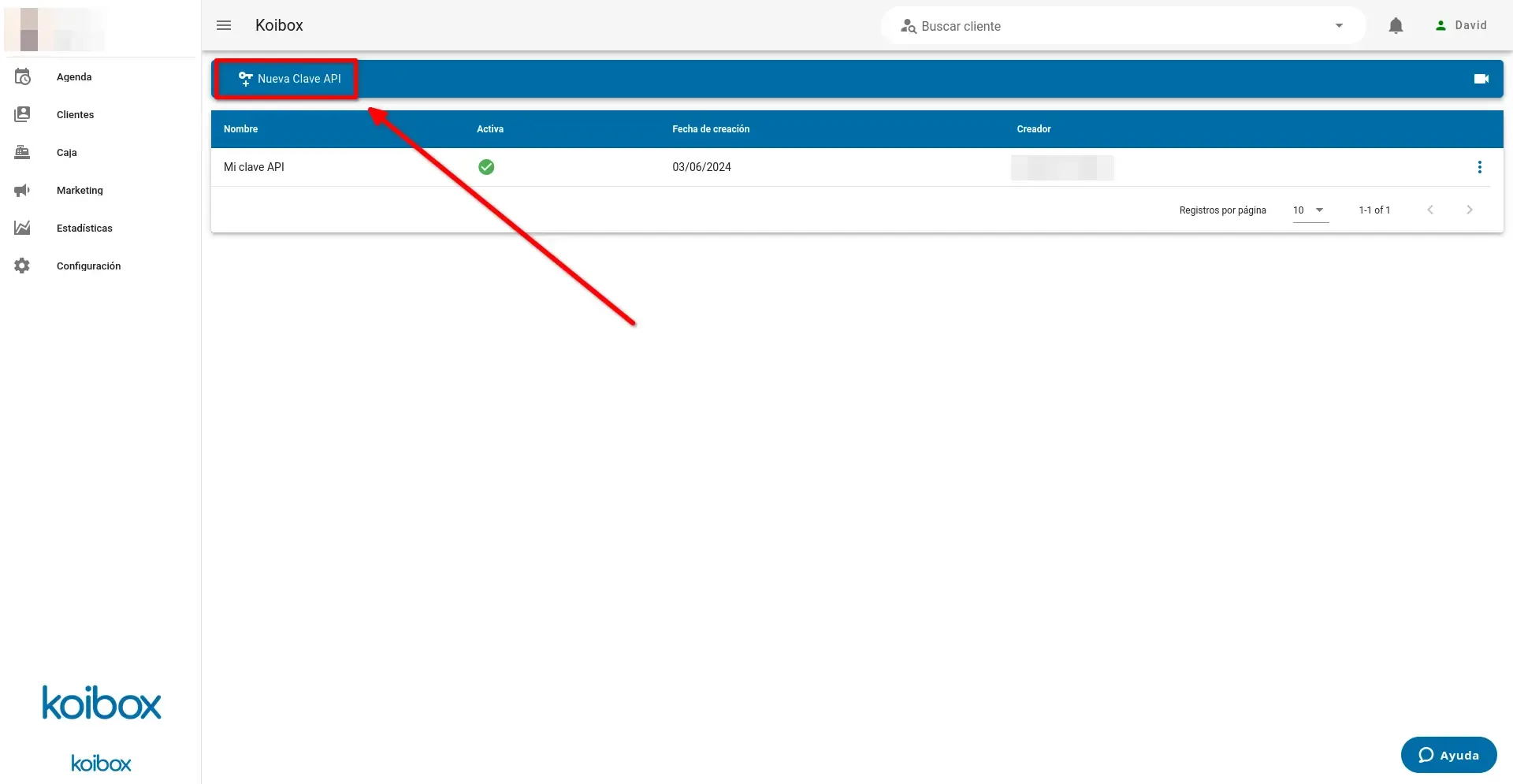
Access the form to create an API key
Section titled “Access the form to create an API key”In the blue top bar, click the “New API Key” button
-
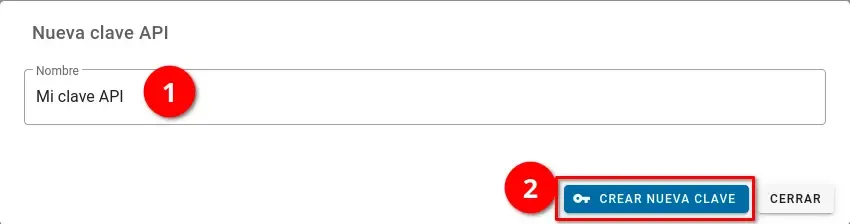
Name the key
Section titled “Name the key”In the form that appears to create a key, you will be asked to give it a name. This is so that you can identify the key later if you need to manage it. When you have a good name, click “Create new key”.
-
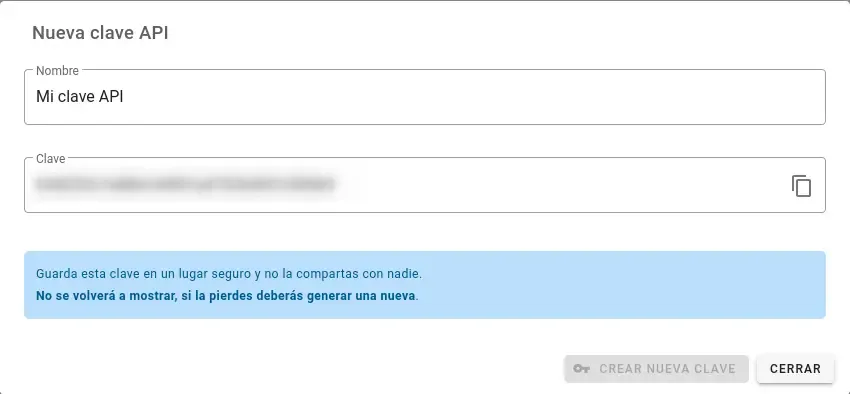
Save and copy the key
Section titled “Save and copy the key”You will see that the form now shows a new read-only field. It is your new API key. You must save it securely, as it allows your application to perform actions in your center.
Make your first request
Section titled “Make your first request”Once you have created an API key, you can start making requests.
You can check that your key works correctly by calling the endpoint /api/api-key/me.
The API key must be added in the X-Koibox-Key header; if you do not add it to the request, you will receive a 401.
You should receive a 200 response with a structure similar to this:
{ "name": "your-key-name", "centro": 1}The information you receive about the key is:
- Its name
- The identifier of the center it belongs to
All set! You can go to the API reference for more information about the calls you can make to work with your center’s information.